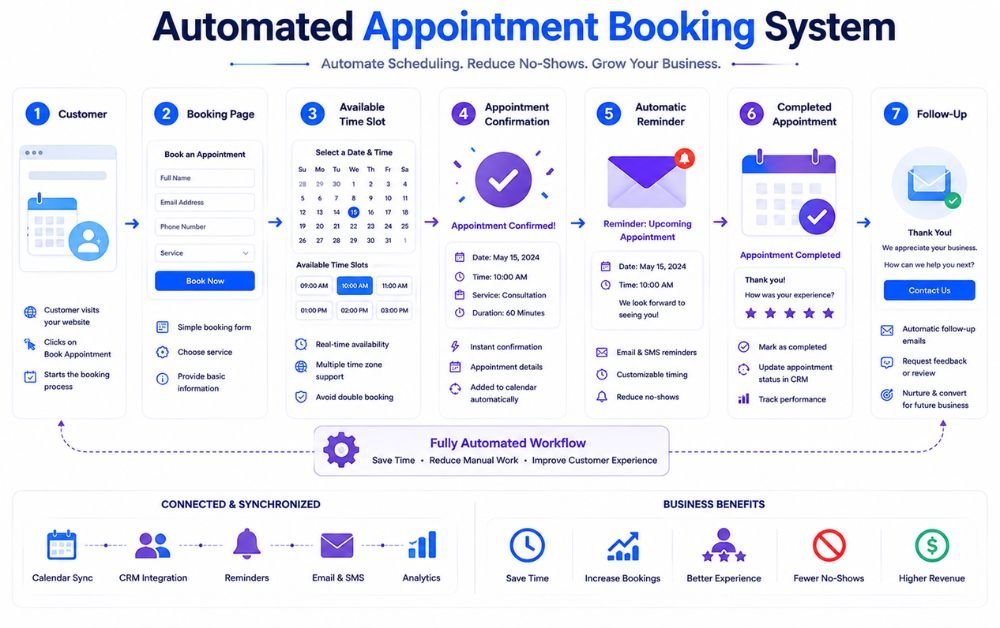
Managing appointments manually can quickly become difficult for service businesses. Customers may call, send messages, or wait for a response before finding an available time. At the same time, staff members have to check schedules, confirm bookings, send reminders, and handle cancellations.
An Automated Appointment Booking System can simplify this entire process. Customers can view available time slots, choose a suitable appointment, and receive confirmation without waiting for someone to respond manually.
The system can also handle important tasks after the booking is made. Automated reminders can reduce missed appointments, while follow-up messages can help businesses stay connected with customers after the service.
For small service businesses, this creates a more organized booking process while reducing repetitive administrative work. Instead of managing every appointment manually, businesses can use automation to handle routine communication and give customers a faster, more convenient way to schedule their appointments.
An Automated Appointment Booking System is a digital system that allows customers to schedule appointments without needing to contact a business manually. Customers can view available dates and times, select a service, enter their details, and confirm their appointment online.
Once the booking is completed, the system can automatically send confirmation messages and add the appointment to the business calendar. It can also send reminders before the scheduled time, helping customers remember their bookings.
For service businesses, this creates a smoother process for both customers and staff. Employees do not need to spend as much time answering booking requests, checking availability, or confirming appointments one by one.
A good system can also connect with other business tools, allowing customer information and appointment details to move into the appropriate workflow. This makes appointment management more organized and gives businesses more time to focus on delivering their services.
Why Service Businesses Need Appointment Automation
Service businesses often depend on appointments to manage their daily operations. When bookings are handled manually, staff may spend a significant amount of time responding to messages, checking calendars, confirming appointments, and managing changes.
Appointment automation reduces this repetitive work by allowing customers to book available time slots themselves. Once a booking is made, confirmation messages and reminders can be sent automatically.
This can also make the customer experience more convenient. Customers do not have to wait for business hours or exchange several messages simply to find an available appointment time.
Automation can help businesses reduce scheduling conflicts as well. When the booking calendar is connected properly, unavailable time slots can be removed from the customer’s view.
For growing service businesses, this creates a more consistent booking process. Staff can spend less time managing routine scheduling tasks and more time serving customers, while the business maintains a clearer view of upcoming appointments.
Common Appointment Booking Problems for Service Businesses
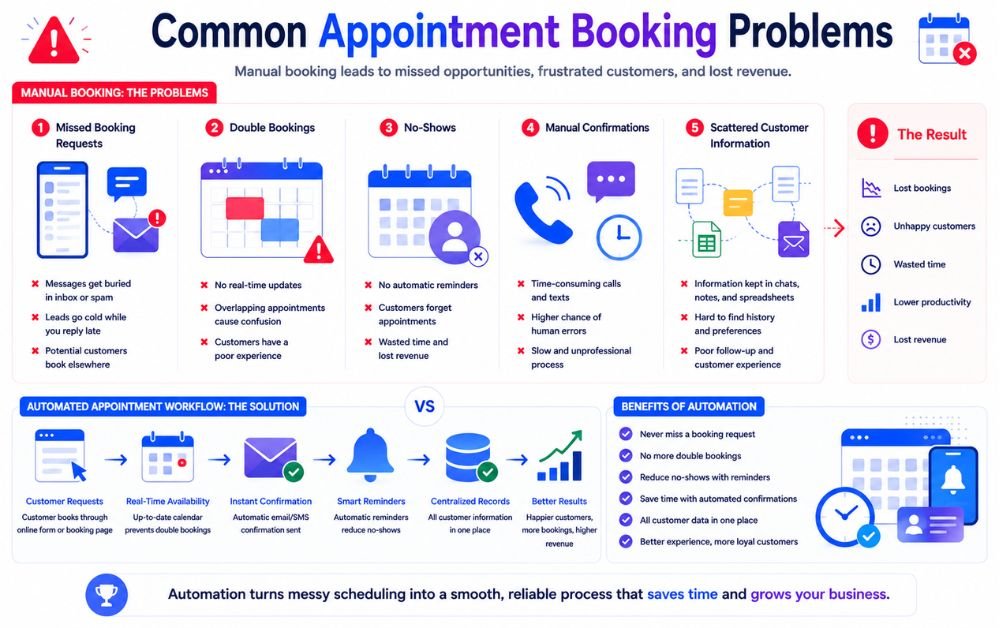
Many service businesses still manage appointments through phone calls, emails, messaging apps, or spreadsheets. These methods can work with a small number of customers, but problems often appear as booking volume increases.
One common issue is missed inquiries. A customer may contact the business when nobody is available to respond, and the booking opportunity can be forgotten.
Double bookings are another problem when availability is managed manually across different calendars or communication channels. Staff may also spend unnecessary time confirming appointments and handling rescheduling requests.
No-shows can create another challenge. Without timely reminders, customers may forget their scheduled appointment, leaving unused time in the business calendar.
Manual systems can also make it difficult to maintain accurate customer and appointment records. Important information may be scattered across different tools instead of being organized in one place.
An automated process can address many of these problems by centralizing bookings, availability, confirmations, reminders, and appointment information.
How an Automated Appointment Booking System Works
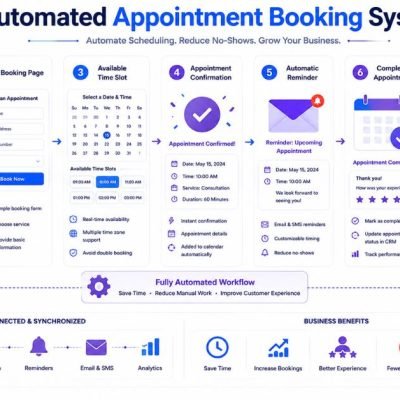
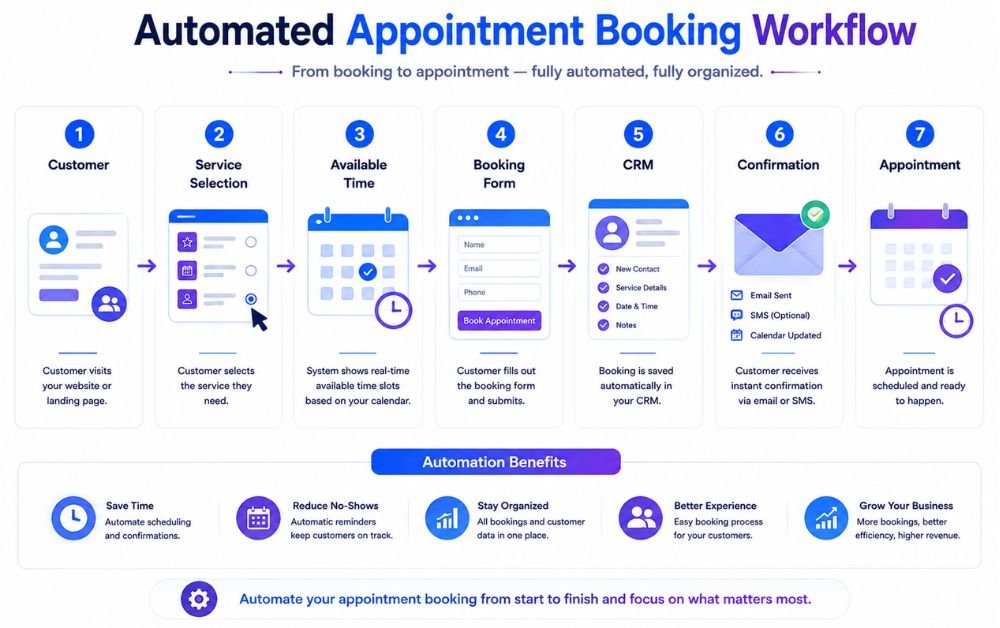
An Automated Appointment Booking System connects the main steps involved in scheduling and managing customer appointments. Instead of handling each request manually, the system allows customers to choose an available service and time directly from an online booking page.
After a customer selects a suitable slot, the system records the appointment and updates the available schedule. A confirmation message can then be sent automatically with the appointment details.
The workflow can continue beyond the initial booking. Reminders can be scheduled before the appointment, while customer information can be stored in a CRM for future communication and follow-up.
For service businesses, this creates a consistent process from booking to appointment completion. Staff do not need to manually check every request, confirm every booking, or remember every reminder.
The exact workflow can be adjusted based on the business’s services, working hours, booking rules, customer information, and follow-up requirements.
Step 1: Choose the Right Appointment Booking Tool
Choosing the right booking tool is the foundation of an effective appointment process. Start by identifying what your service business actually needs rather than choosing a platform simply because it has many features.
Look for essential functions such as online scheduling, calendar management, automated confirmations, appointment reminders, rescheduling, cancellation management, and customer information collection.
The tool should also be easy for customers to use. A complicated booking process can create unnecessary friction and cause potential customers to leave before completing their appointment.
Integration is another important consideration. If you already use a CRM, email platform, calendar, or other business software, check whether the booking tool can connect with those systems.
Consider your current appointment volume and future growth as well. A simple solution may be enough for a small service business, while a growing company may need stronger automation and customer-management capabilities.
The goal is to choose a reliable system that simplifies scheduling without making the process unnecessarily complicated.
Step 2: Define Your Services and Appointment Types
Before opening your calendar for bookings, clearly define the services customers can schedule. Each service should have an understandable name, description, duration, and booking requirement.
For example, a consulting business might offer an initial consultation, follow-up session, and strategy meeting. A salon could provide different services with different appointment lengths.
Defining appointment types helps the booking system calculate how much time each customer requires. It also prevents customers from selecting the wrong service or booking an inappropriate time slot.
If certain services require specific staff members, equipment, or locations, include those requirements when configuring the system.
Keep the choices simple from the customer’s perspective. Too many similar options can make the booking page confusing.
You can also provide basic information about what customers should prepare before their appointment. Clear service descriptions reduce unnecessary questions and help customers select the correct appointment type before confirming their booking.
Step 3: Set Your Availability and Business Hours
After defining your services, configure when customers can book appointments. Start by entering your normal business hours and then identify the specific time periods available for each service.
Consider staff schedules, lunch breaks, holidays, meetings, and other periods when appointments cannot be accepted. If different employees have different schedules, their availability should also be configured correctly.
Adding buffer time between appointments can be useful for services that require preparation, cleanup, travel, or administrative work. This prevents appointments from being scheduled too close together.
You should also review your calendar regularly to make sure the available slots reflect your actual schedule.
Accurate availability is essential because customers should only see times that can genuinely be fulfilled. If the system displays unavailable times, staff may need to manually correct bookings later.
A properly configured schedule gives customers more confidence when selecting an appointment and helps reduce unnecessary scheduling conflicts.
Step 4: Create a Simple Booking Page
Your booking page should make scheduling an appointment as easy as possible. Customers should immediately understand what they can book, how long the appointment will take, and which times are available.
Start with a clear headline and a short explanation of the service. Then display the available appointment types and time slots in an easy-to-understand format.
Avoid adding unnecessary fields or complicated steps. Ask only for information that is needed to schedule or prepare for the appointment.
The page should also work well on mobile devices because many customers may access it from their phones. Buttons, calendars, forms, and confirmation messages should be easy to view and use on smaller screens.
A clear call to action can guide customers toward completing their booking.
Before publishing the page, test the entire process yourself. Make a test appointment from beginning to end and check that the selected service, date, time, customer details, and confirmation information are displayed correctly.
Step 5: Add a Lead Capture Form
Adding a lead capture form to the booking process allows you to collect useful customer information before the appointment. The form should remain simple and focus on details that genuinely help your business.
Basic information may include the customer’s name, email address, phone number, and reason for booking. Depending on the service, you may also ask a short qualifying question.
Avoid requesting too much information. Every additional field can make the booking process feel more difficult, especially for customers who are ready to schedule quickly.
The information collected can also help your team prepare before the appointment. For example, knowing the customer’s specific requirement in advance can make the conversation more productive.
If the booking system connects with your CRM, the submitted information can be stored automatically instead of being copied manually.
This creates a smoother connection between appointment scheduling and customer management while reducing repetitive administrative work.
Step 6: Connect Your Booking System to Your CRM
Connecting your booking system to your CRM allows appointment information and customer details to move into one central system. This can reduce manual data entry and give your team a clearer view of each customer.
When a customer books an appointment, the workflow can create or update their contact record in the CRM. Information such as name, email address, phone number, selected service, and appointment date can be stored for future use.
The CRM can then trigger additional actions based on the booking. These might include creating a follow-up task, sending an email, updating a customer status, or assigning the contact to a team member.
Before activating the connection, test it with a sample booking. Check that the correct information reaches the correct CRM fields and that duplicate contacts are handled appropriately.
A reliable connection turns appointment scheduling into part of a broader customer-management workflow instead of leaving booking information isolated from the rest of your business process.
Step 7: Send Automatic Booking Confirmations
After a customer completes an appointment booking, an automatic confirmation should be sent immediately. This reassures the customer that the appointment was successfully scheduled and gives them an easy reference for the details.
The confirmation can include the service name, appointment date, time, location or meeting link, and any preparation instructions the customer needs to know.
Keep the message clear and easy to scan. Avoid filling the confirmation with unrelated promotional information because the primary purpose is to confirm the appointment.
You can also include options for rescheduling or cancellation when appropriate. Giving customers a simple way to manage their booking can reduce unnecessary calls and messages.
Test the confirmation workflow before launching it. Make sure the message is triggered at the correct point and that customer-specific information appears correctly.
A reliable confirmation process creates a professional customer experience while reducing the need for staff to manually confirm every appointment.
Step 8: Automate Appointment Reminders
Appointment reminders help customers remember their scheduled time and give them an opportunity to make changes before the appointment. Instead of sending each reminder manually, an automated system can schedule messages based on the appointment date.
For example, a confirmation can be sent immediately after booking, followed by another reminder a day before the appointment. A shorter reminder can also be sent a few hours before the scheduled time when appropriate.
The reminder should clearly include the appointment date, time, service, and any important instructions. Keep the message short so customers can understand the information quickly.
You can also include a link that allows customers to review or manage their appointment.
Automating reminders reduces repetitive administrative work and creates a more consistent customer experience. It also gives customers useful information at the right time without requiring staff to remember every upcoming appointment.
Step 9: Send Follow-Up Messages After Appointments
The customer relationship should not end when an appointment is completed. An automated follow-up message can help businesses stay connected and encourage the customer to take the next appropriate action.
The message can thank the customer for attending, provide additional instructions, ask for feedback, or explain what happens next. The content should match the type of service provided.
For example, a consultant might send a summary or next-step message, while a service provider may provide after-service instructions.
Follow-up timing also matters. Sending the message too quickly may feel unnecessary, while waiting too long can reduce its relevance. The automation system can schedule the message according to the business’s normal customer journey.
Businesses can also use follow-ups to encourage repeat bookings when appropriate. This creates a consistent communication process without requiring employees to manually contact every customer after each appointment.
Step 10: Handle Cancellations and Rescheduling Automatically
Customers sometimes need to change or cancel their appointments. A good booking system should make this process simple instead of requiring customers to call or message the business every time.
Provide clear cancellation and rescheduling options within the confirmation or reminder message. When a customer changes an appointment, the system should update the calendar and release the previous time slot automatically.
This helps prevent outdated bookings from remaining on the schedule. It also allows another customer to potentially select the newly available time.
Businesses can define their own cancellation rules, including notice periods or other booking policies. These rules should be displayed clearly before customers complete their appointment.
Automatic handling also reduces administrative work for staff. Instead of manually editing calendars and sending new confirmations, the system can update the appointment information and communicate the change automatically.
This creates a smoother experience for both customers and employees.
Step 11: Reduce No-Shows With Automated Reminders
No-shows can leave valuable appointment slots unused and reduce the efficiency of a service business. Automated reminders can help customers remember their commitments and provide an easy way to manage their appointment if their plans change.
A useful reminder sequence may include an initial confirmation, a reminder before the appointment, and a final message closer to the scheduled time.
The exact timing should depend on the type of service and how far customers typically plan in advance. Avoid sending too many messages because excessive reminders can become annoying.
Include the most important information in each reminder, such as the appointment time, location, meeting link, and instructions for rescheduling.
Businesses can also monitor their no-show rate to determine whether the reminder schedule is effective. If missed appointments remain high, the timing or message content can be adjusted.
The goal is not simply to send more reminders but to provide useful information at the right moments.
Step 12: Track Appointments and Customer Activity
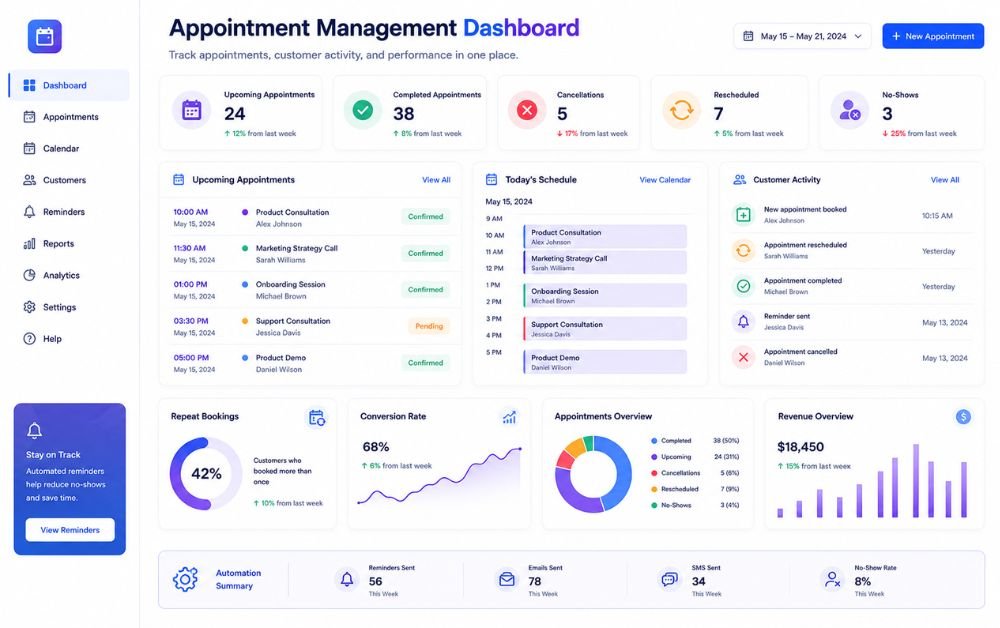
Tracking appointment activity helps businesses understand how customers move through the booking process. An organized system can show upcoming appointments, completed services, cancellations, rescheduled bookings, and customer interactions.
Customer activity can also provide useful context for future communication. For example, the business may be able to see which service a customer booked previously and whether they returned for another appointment.
A CRM-connected booking workflow can keep this information together instead of spreading it across calendars, emails, spreadsheets, and messaging platforms.
Businesses can also monitor performance metrics such as total bookings, completed appointments, cancellations, no-shows, repeat bookings, and conversion rates. These numbers can reveal where improvements are needed.
Regularly reviewing appointment data helps businesses make better scheduling decisions and identify patterns in customer behavior.
The goal is to use the information to improve the booking experience, reduce administrative work, and build a more consistent customer management process.
Connecting Appointment Booking With Lead Follow-Up
Appointment booking should not work as a separate process from lead management. When a customer books a service, the booking information can become the starting point for a structured follow-up process.
The customer’s name, contact details, selected service, appointment date, and other relevant information can be stored as part of their customer record. This allows the business to understand what the customer requested and what stage they have reached.
Before the appointment, automated messages can provide useful reminders or preparation instructions. After the appointment, the workflow can continue with a thank-you message, feedback request, or information about the next step.
This approach keeps communication connected throughout the customer journey. Instead of treating every booking as an isolated transaction, businesses can use the appointment as part of a broader relationship-building process.
The key is to make each message relevant to the customer’s actual booking and avoid unnecessary communication that does not support the next stage.
Using CRM Automation to Manage Appointments
A CRM can help businesses organize customer information alongside appointment activity. When the booking system is connected to the CRM, new appointments can automatically create or update customer records.
The CRM can store details such as the selected service, appointment status, booking date, and previous interactions. This gives staff a clearer picture of each customer’s history before contacting them.
Automation can also trigger actions based on appointment events. A new booking might create a task for a team member, while a completed appointment could trigger a follow-up message. A cancellation could update the customer’s status and start an appropriate re-engagement workflow.
This reduces the need to move information manually between different systems.
For businesses managing a growing number of appointments, CRM automation can make customer management more consistent. However, the workflow should remain simple enough for staff to understand, monitor, and adjust when business requirements change.
Common Appointment Booking Automation Mistakes to Avoid
One common mistake is creating an automated booking process without checking whether the available times match the real business schedule. Incorrect availability can lead to double bookings and frustrated customers.
Another problem is making the booking form unnecessarily long. Customers generally need a simple path to select a service, choose a time, and provide essential contact information.
Businesses should also avoid sending too many reminders or follow-up messages. Automation should make communication more useful, not create unnecessary notifications.
Failing to test integrations is another important mistake. A booking may appear successful while customer information fails to reach the CRM or confirmation message.
Some businesses also build complicated workflows before understanding their basic appointment process. This makes troubleshooting harder and can create unnecessary maintenance work.
Start with the essential steps, test the complete customer journey, and add additional automation only when it provides a clear benefit.
Best Practices for Appointment Booking Automation
Start by designing the booking experience from the customer’s perspective. Make it easy to understand available services, choose a suitable time, provide essential information, and confirm the appointment.
Keep your availability accurate and update business hours, holidays, staff schedules, and blocked times regularly. This helps prevent scheduling conflicts.
Use automatic confirmations and reminders to keep customers informed, but make each message short and relevant. Include clear appointment details and provide convenient options for managing changes when appropriate.
Connect booking information with your CRM when customer history and follow-up are important to the business. This can reduce manual data entry and create a more consistent customer journey.
Test every automation before using it with real customers. Make test bookings, cancellations, and rescheduling requests to confirm that each action works correctly.
Finally, review appointment data regularly. Monitor bookings, cancellations, no-shows, repeat appointments, and other useful metrics so you can improve the process over time.
Final Verdict
An Automated Appointment Booking System can make scheduling easier for both customers and service businesses. From online booking and confirmations to reminders, cancellations, follow-ups, and CRM management, automation can reduce repetitive administrative work.
The best approach is not to automate everything at once. Start with the core booking process, make sure availability is accurate, and then add reminders, follow-ups, and CRM connections as needed.
A reliable system should save time while maintaining a convenient customer experience. By monitoring appointment performance and improving the workflow over time, service businesses can create a more organized booking process and spend more time focusing on their customers.
FAQs
It is a digital system that allows customers to schedule appointments online while automatically managing confirmations, reminders, availability, and related booking tasks.
Yes. Compatible systems can transfer customer and appointment information to a CRM, where businesses can manage contact records, follow-ups, and customer activity.
Automatic reminders can notify customers before their scheduled appointment. Providing clear appointment details and easy rescheduling options can also help customers manage changes before the appointment.
Yes, if the booking system supports these features. Customers can receive links or options to change their appointment, while the calendar can update the available time automatically.
Start with online scheduling, accurate availability, booking confirmations, and appointment reminders. Once these work reliably, you can add CRM connections, follow-up messages, customer segmentation, and performance tracking.